
Tech Chat | How to build your CORS platform for free? – Chapter 2
For fresh beginners to setup their CORS network, a period free trail of maintaining your CORS stations and managing your users is important for you to build a long-term platform in the future. In the last chapter we’ve introduced how to get a static IP with Amazon Cloud.
Read previous chapter: Tech Chat | How to build your CORS platform for free? – Chapter 1
Today let's learn how to use Amazon Cloud to create ports for data transfer, and how to set CORS stations and make the mountpoint online. And in the next chapter, we will introduce to you how to realize user management.
Part 1: Create a transmission port in Amazon Cloud
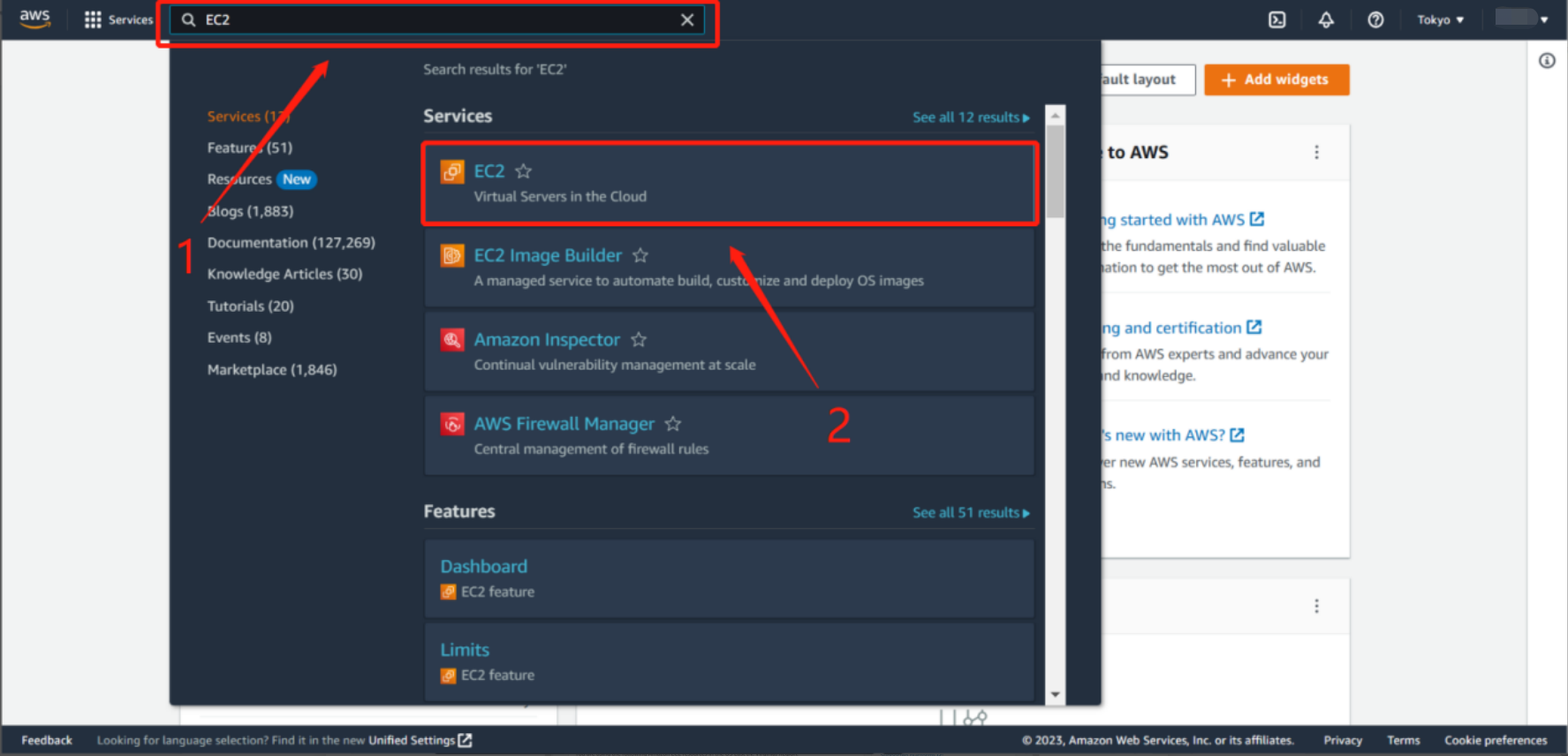
Step 1: Search for the EC2 module in the search bar and click it to enter
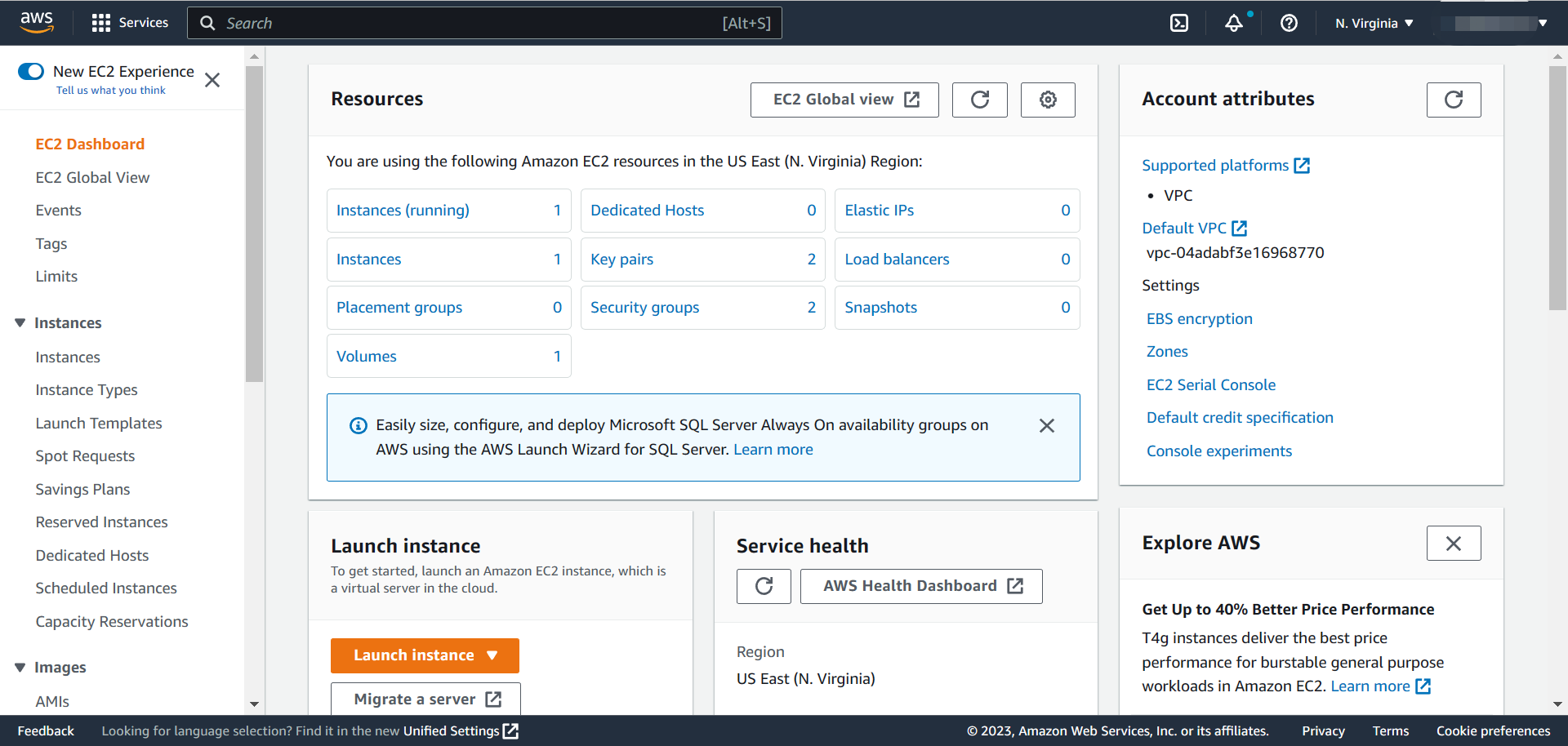
Step 2: Select Instance in the left column, choose the instance you created before, details are displayed below.
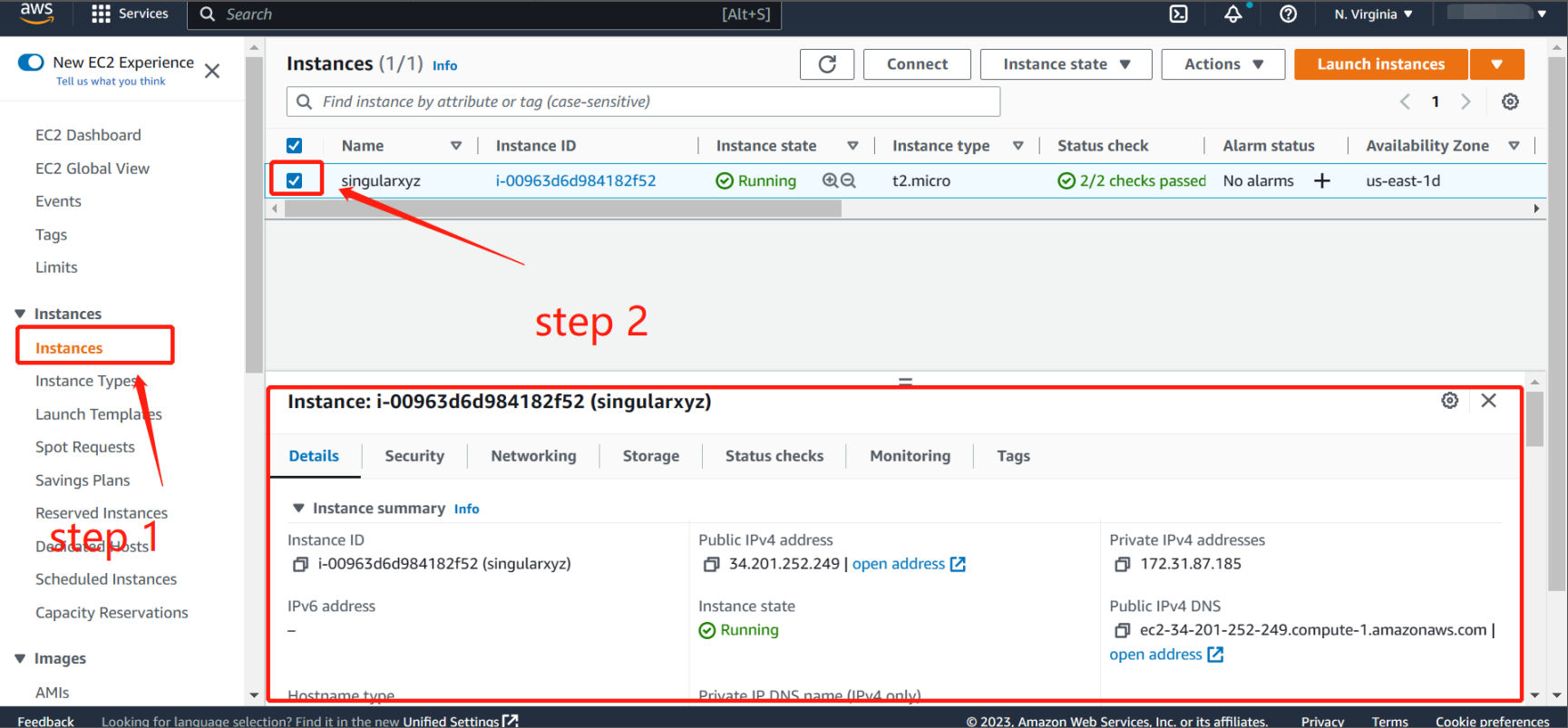
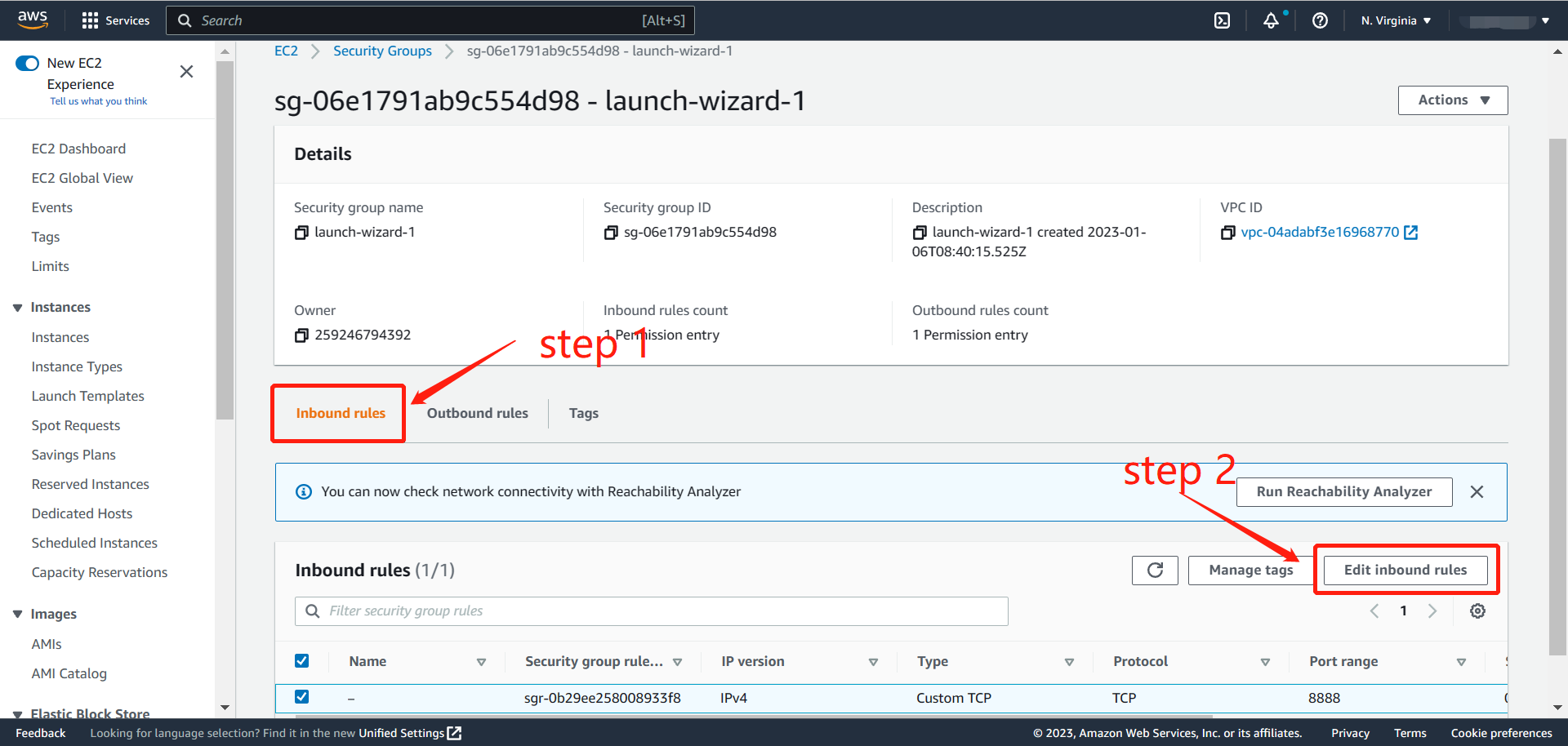
Step 3: Click Security, and next click Security groups
Step 4: Click Edit inbound rules
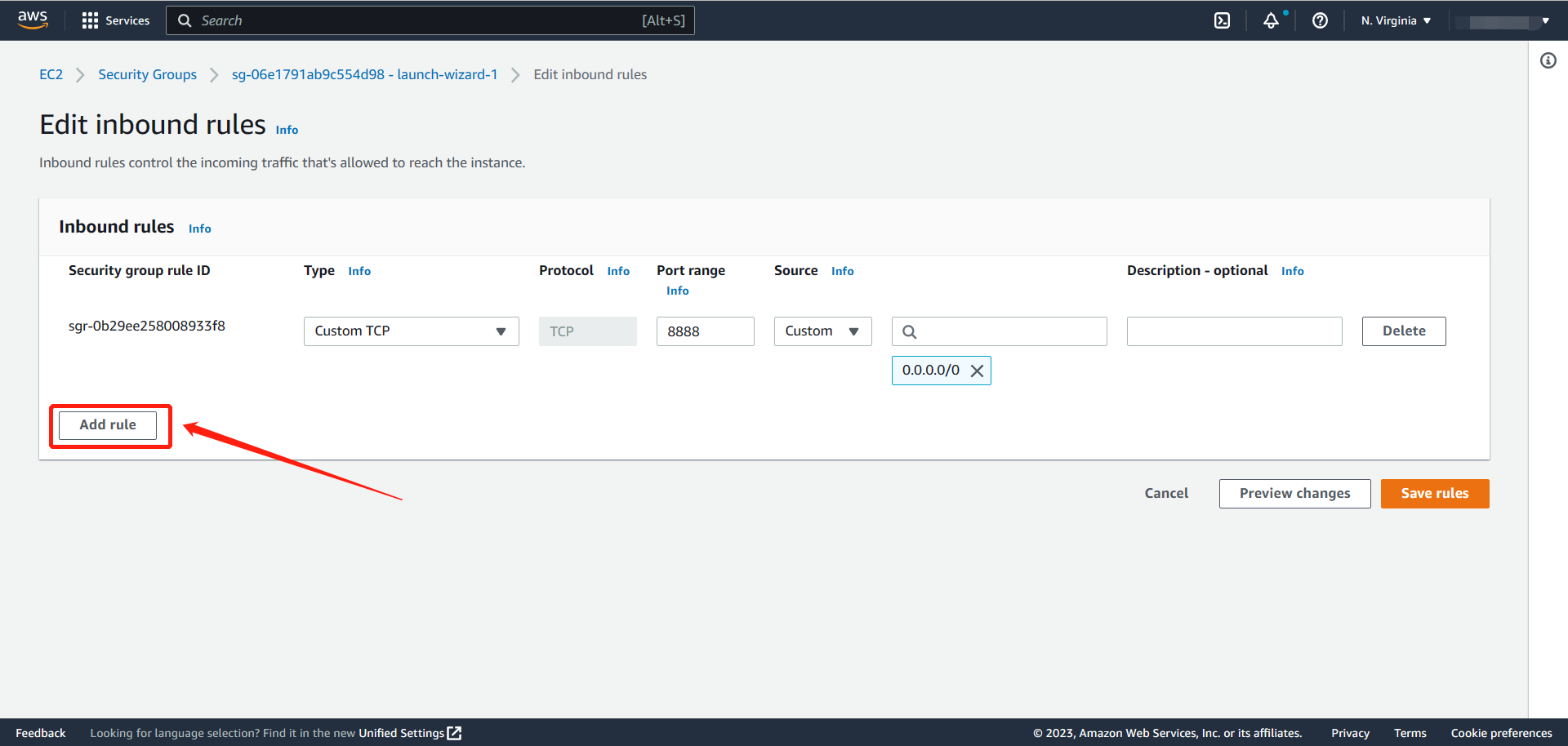
Step 5: Click Add rule to create a port like 8888. Don't forget to save it. Then you will get a port for data transmission.
Part 2: SNIP installation and settings
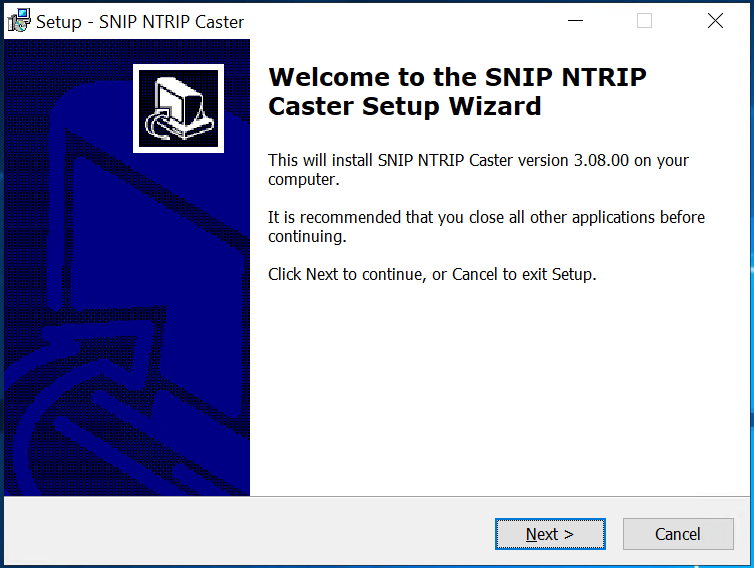
Step 1: Install SNIP on your remote computer
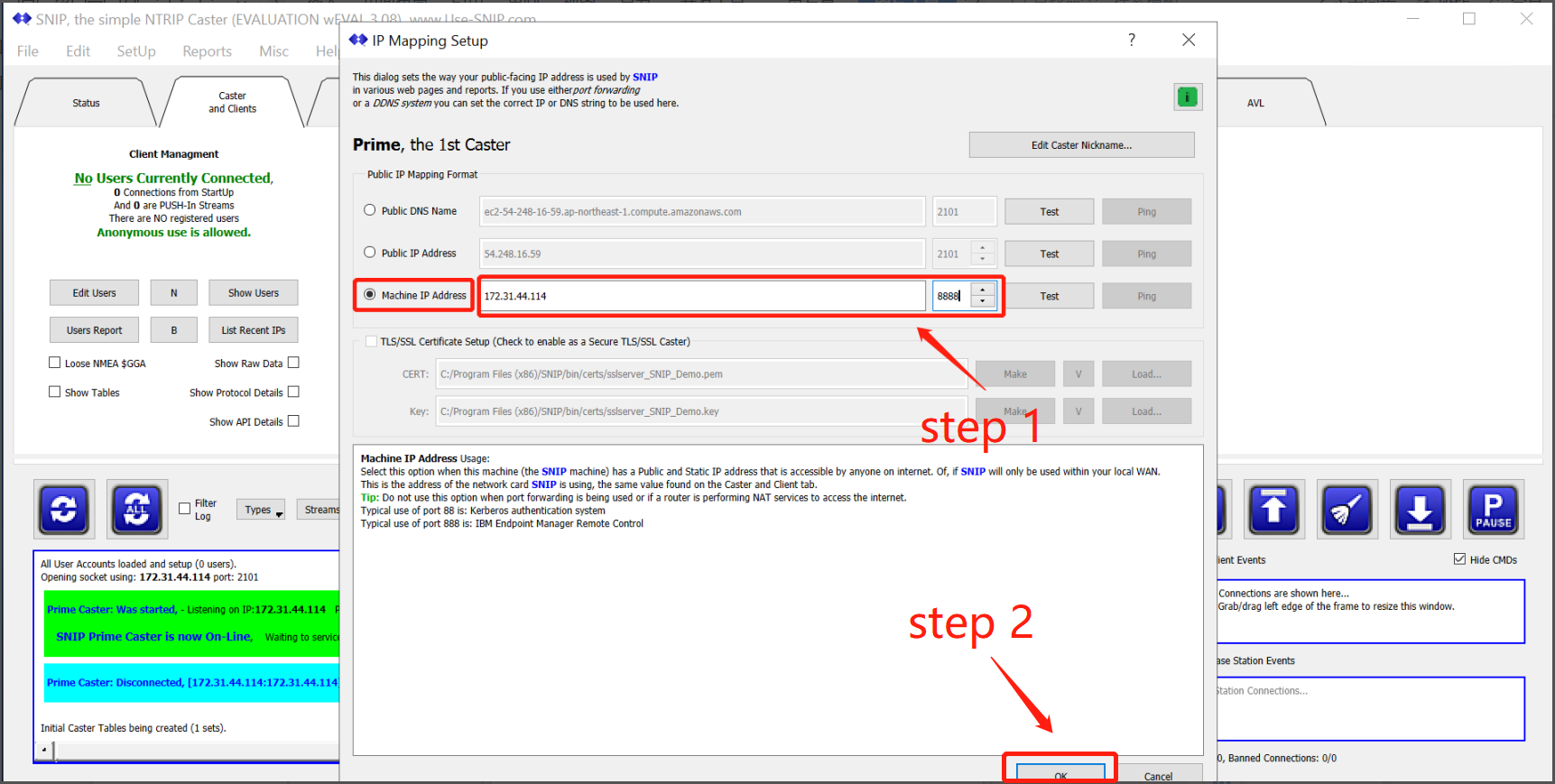
Step 2: Launch SNIP after installation, then click the IP map to modify IP and port.
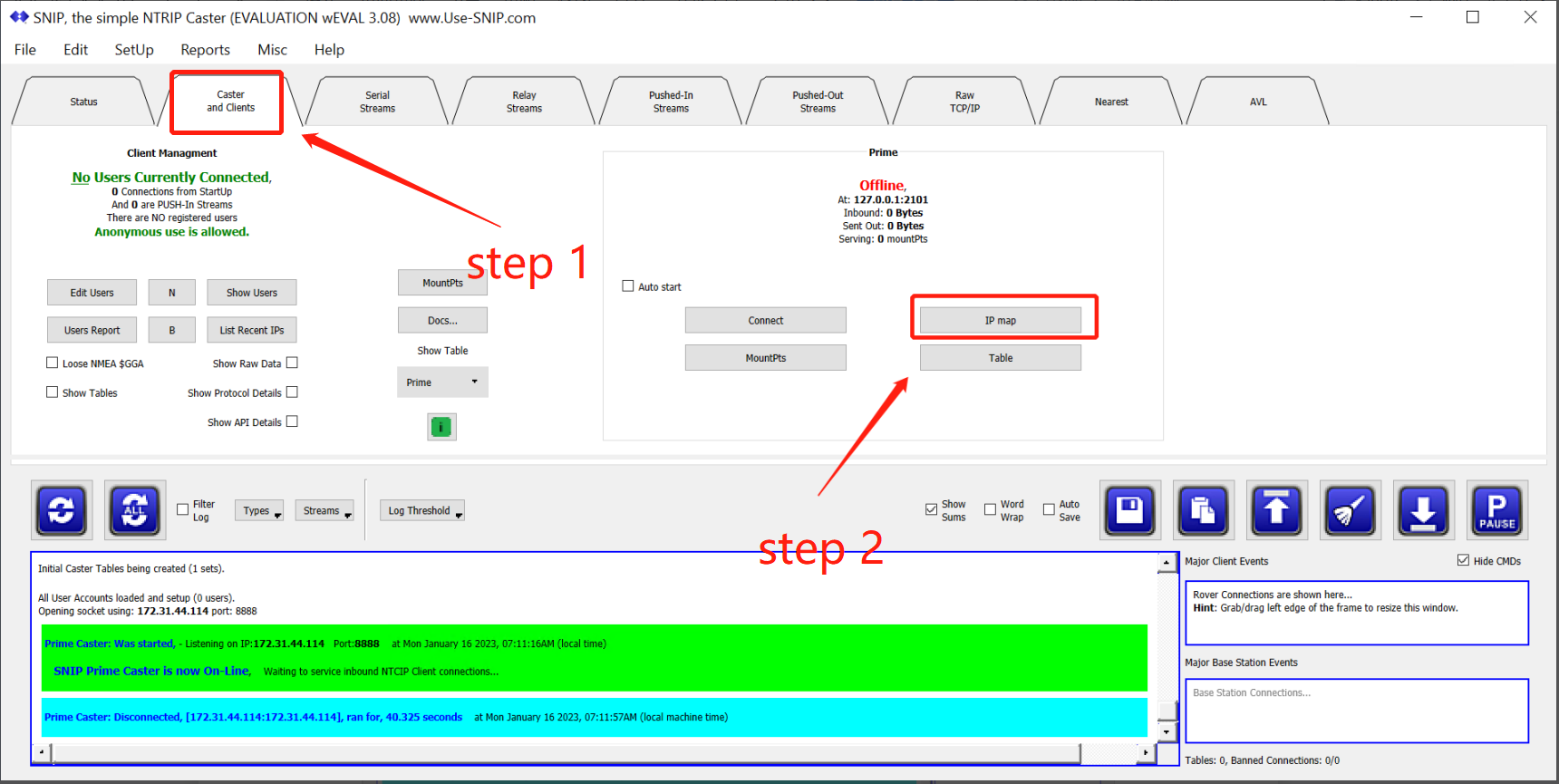
Here you need to enter the private IP and the previously created port.
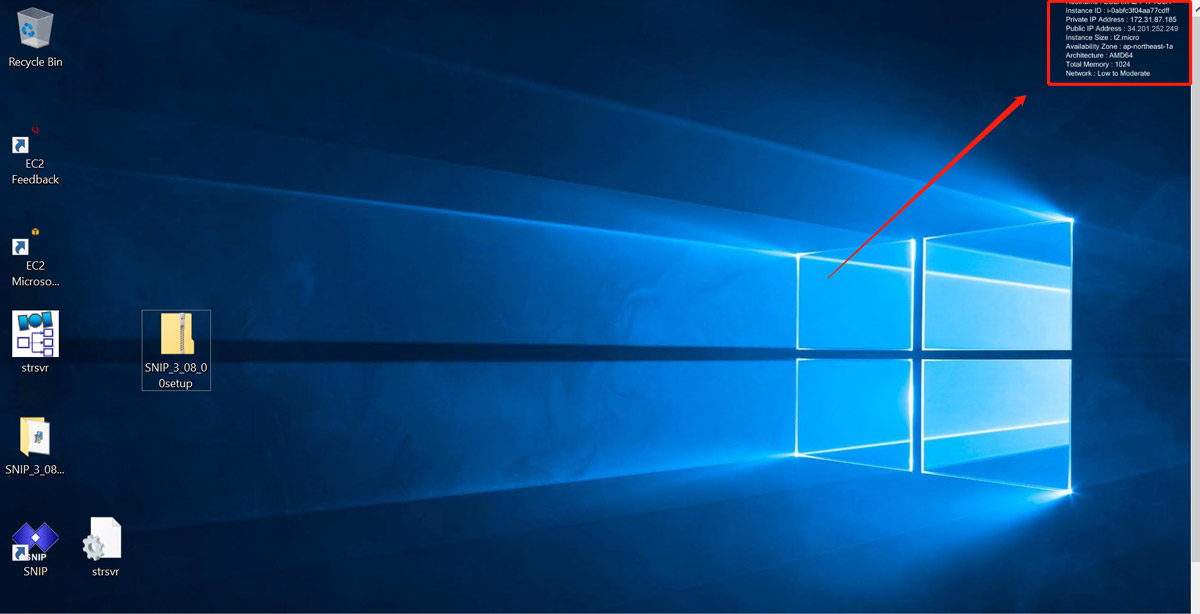
The private IP and public IP will be shown on the desktop.
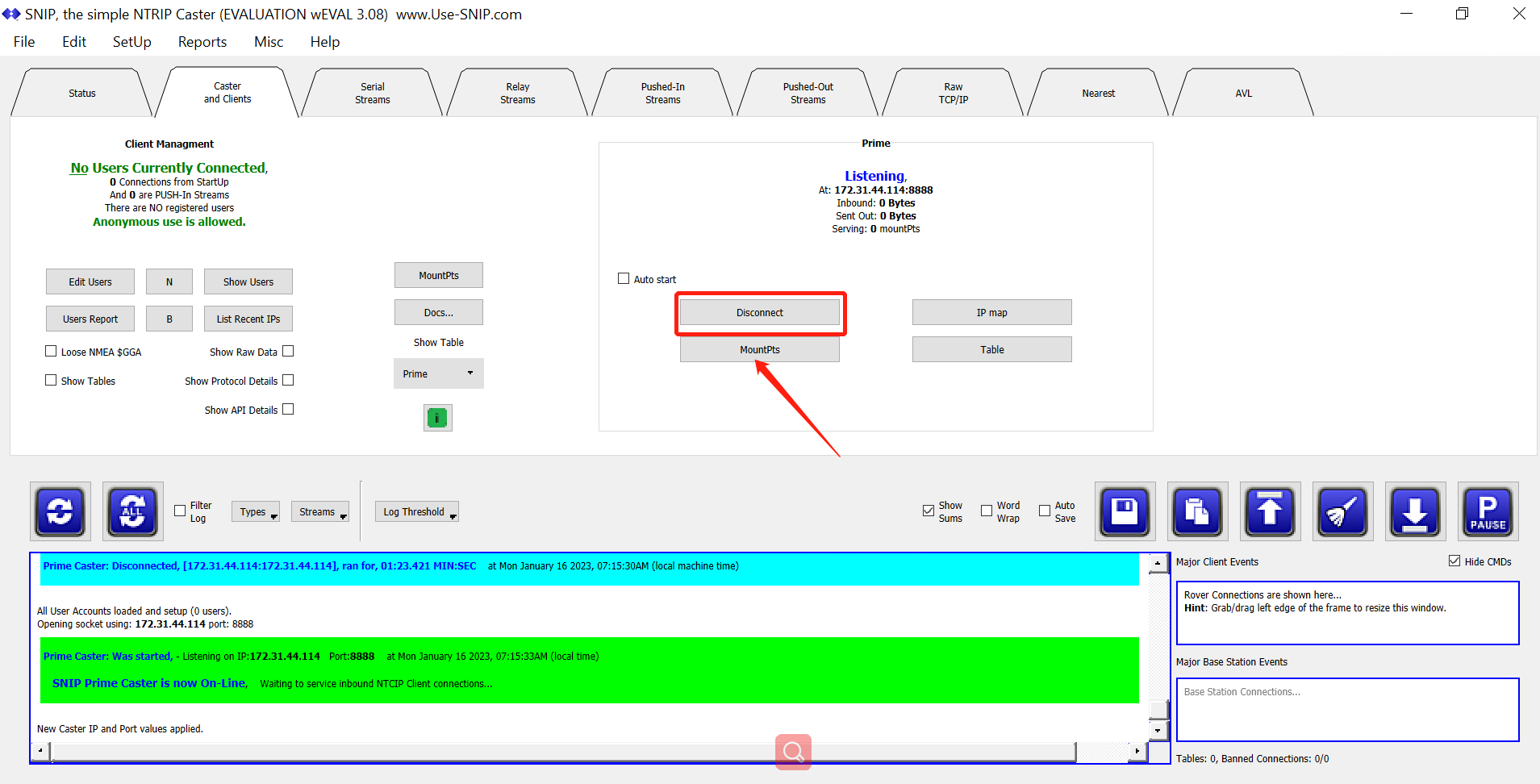
Step 3: Click to connect, then the status will change to listening.
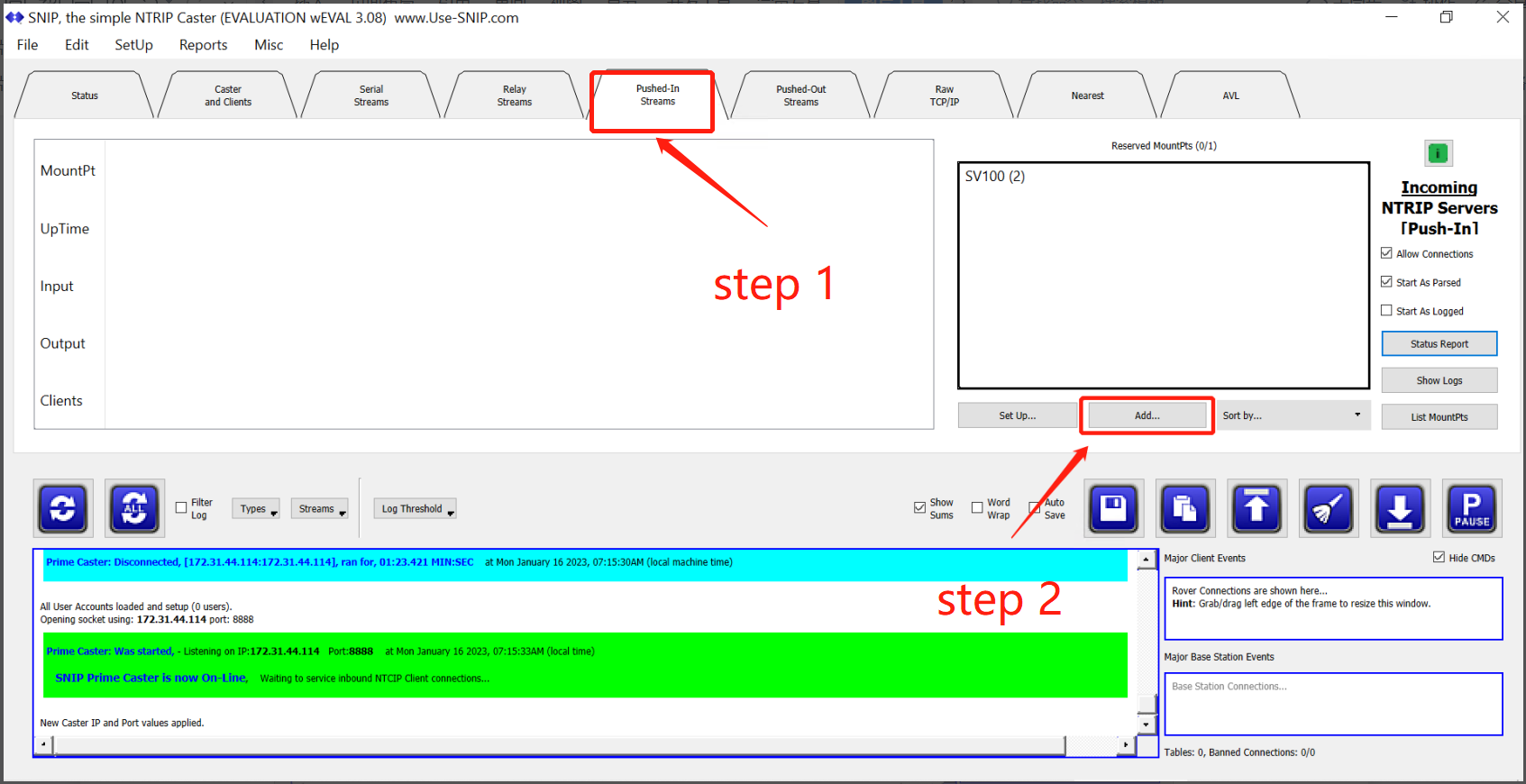
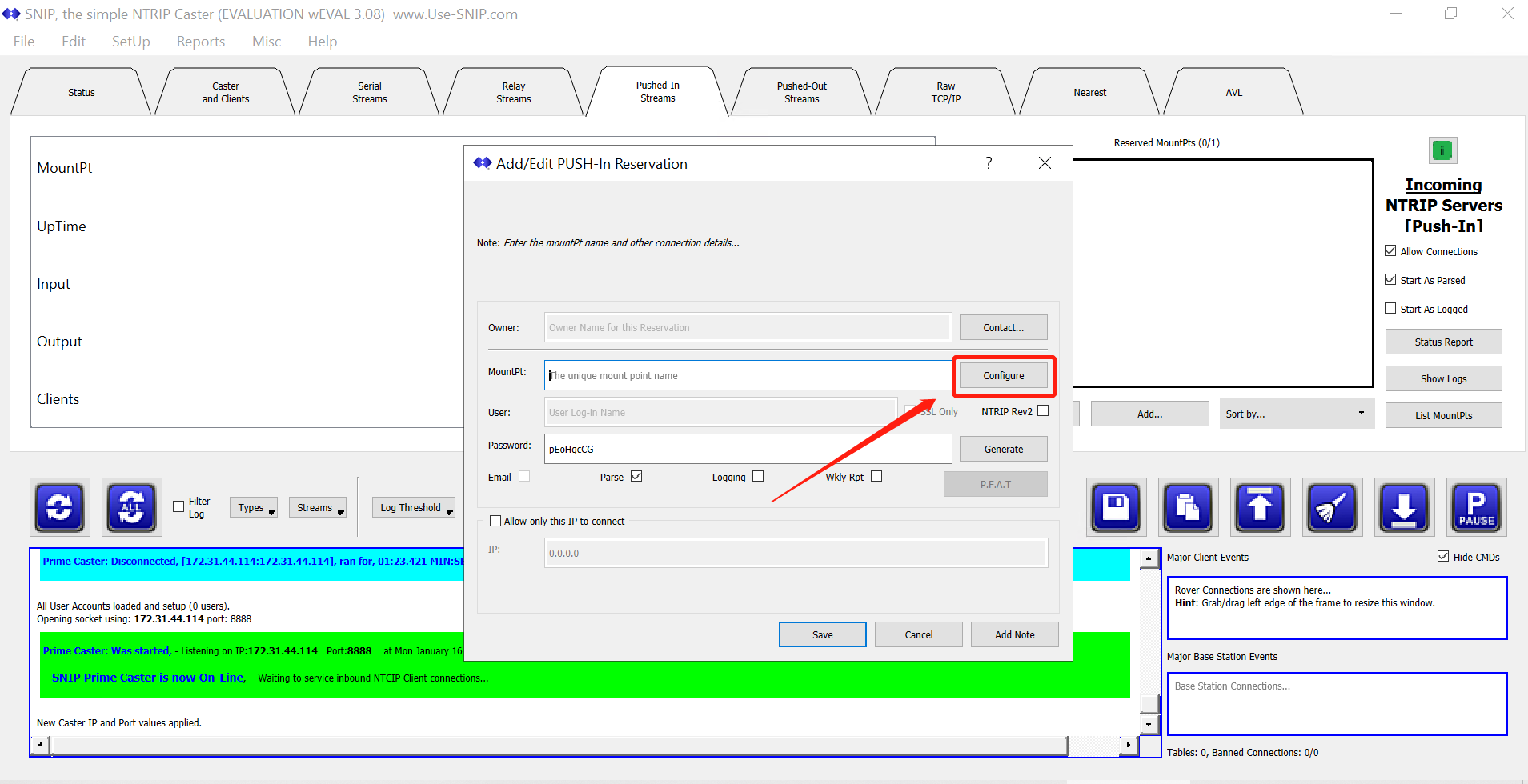
Step 4: Then you need to set a mountpoint for your CORS station, here we take SV100 as an example. Go to Pushed-in stream and click Add.
Click Configure.
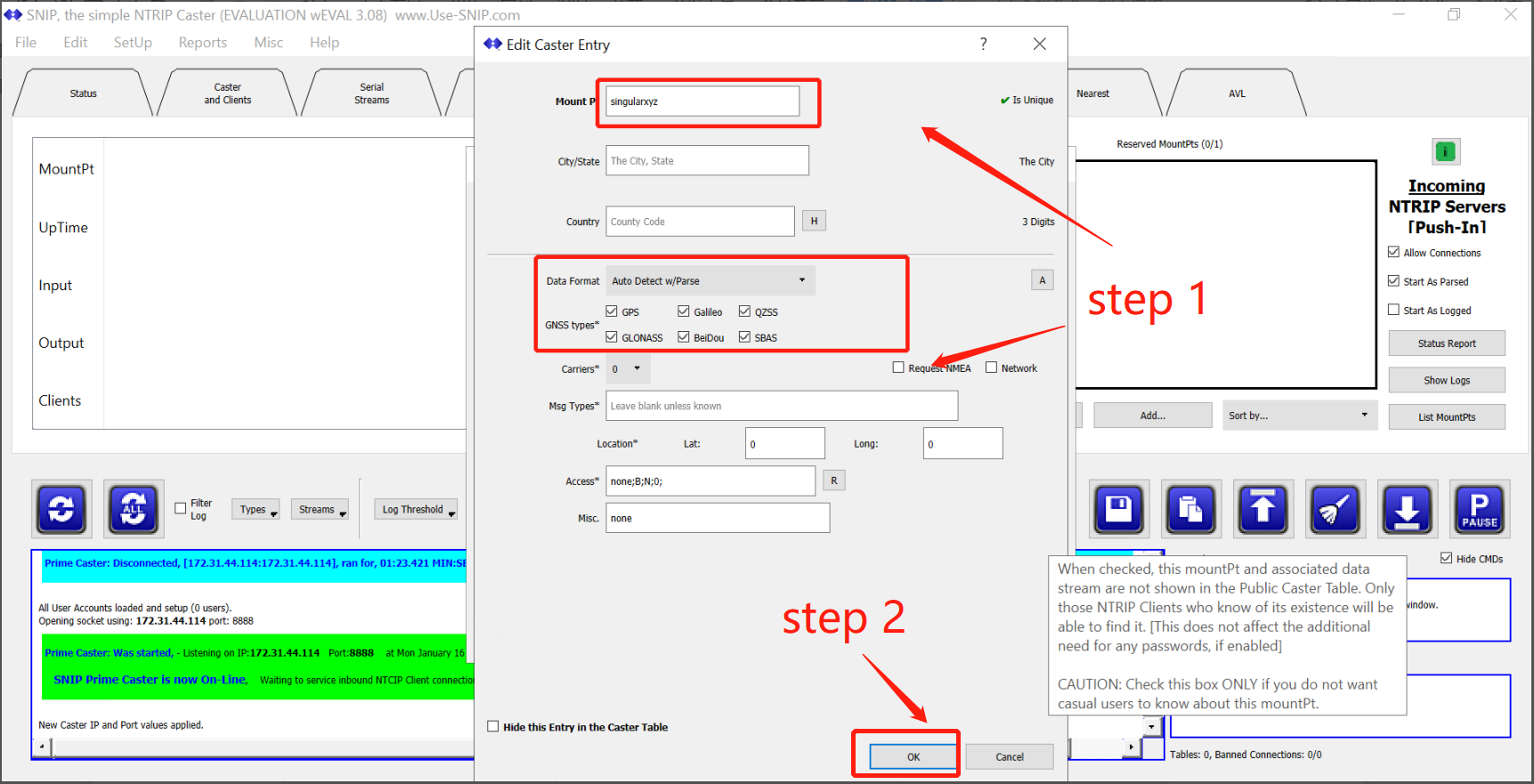
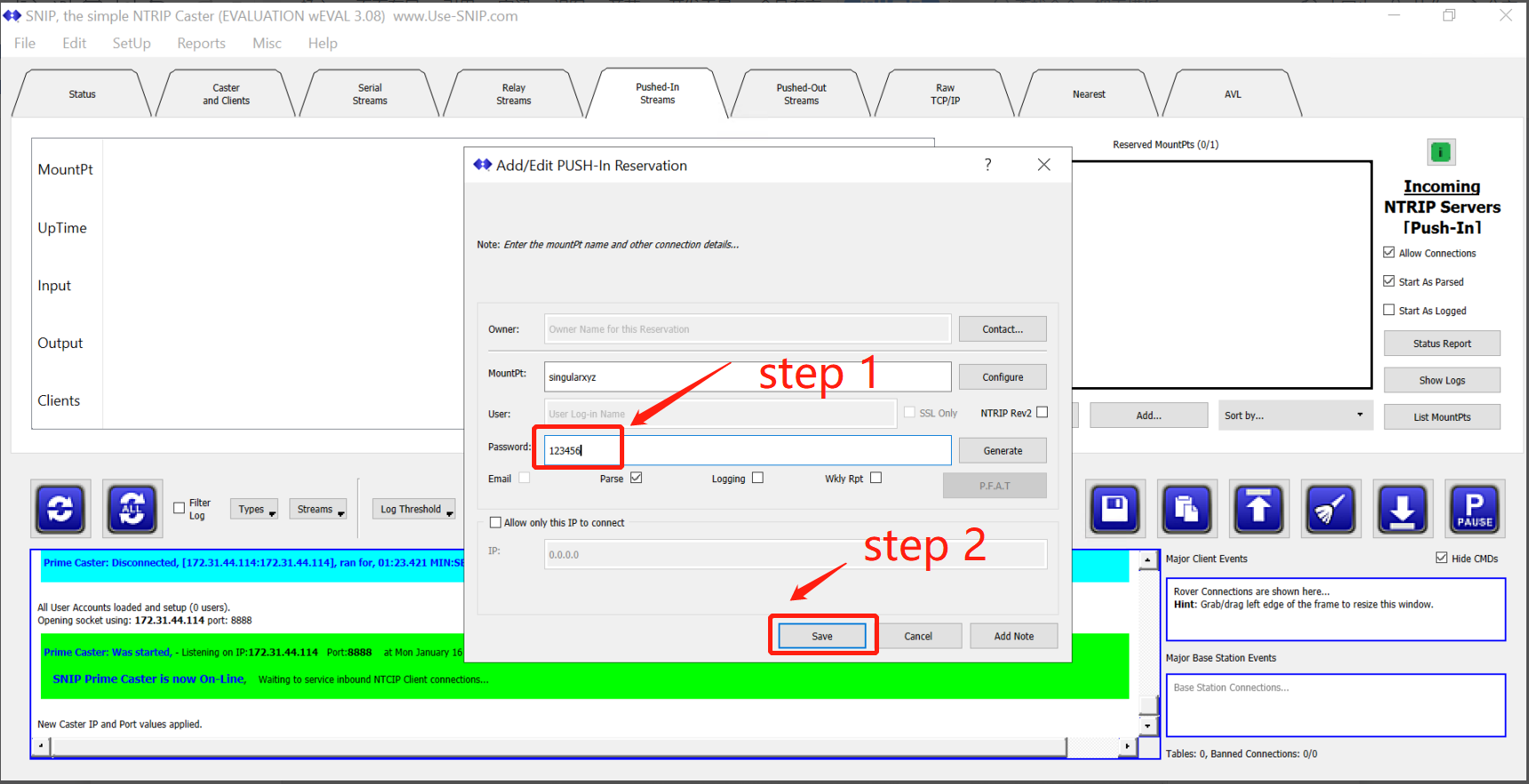
Set name, user and password for it
Part 3: CORS station settings – SV100 GNSS receiver
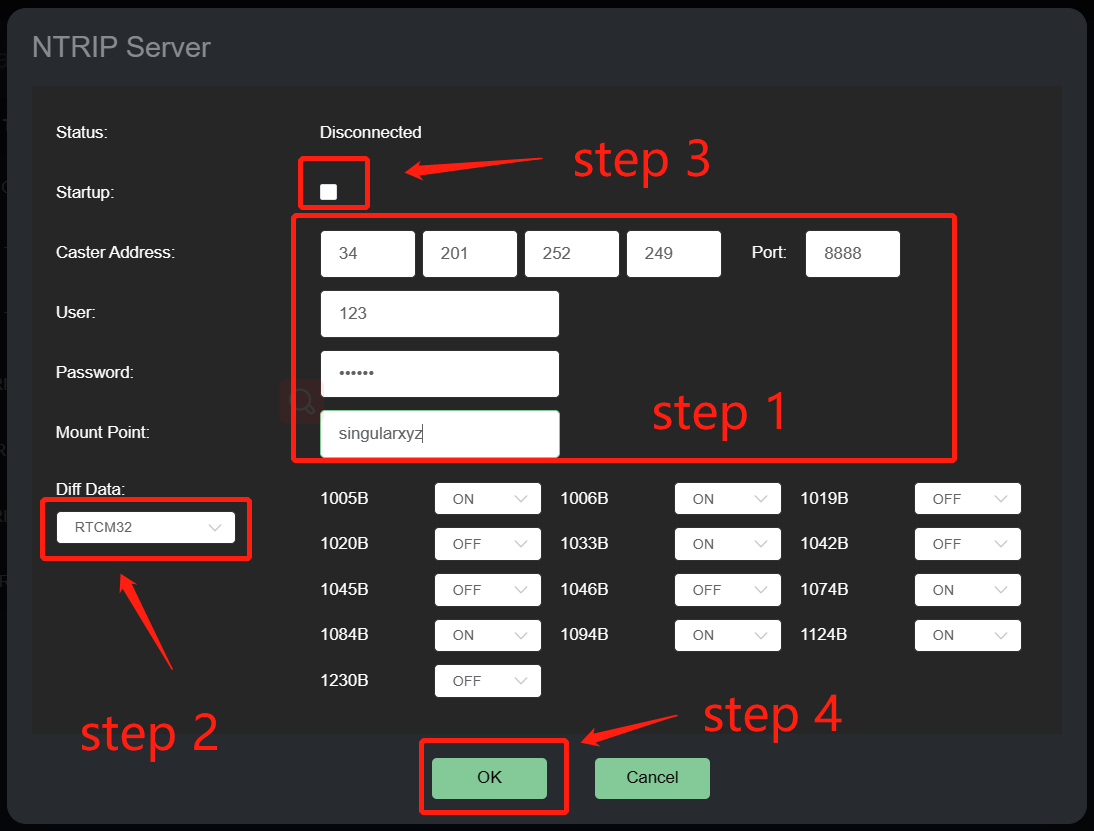
Step 1: Log in the webpage of SV100, go to Work Management >> Data Transmission >> NTRIP Server, click Config.
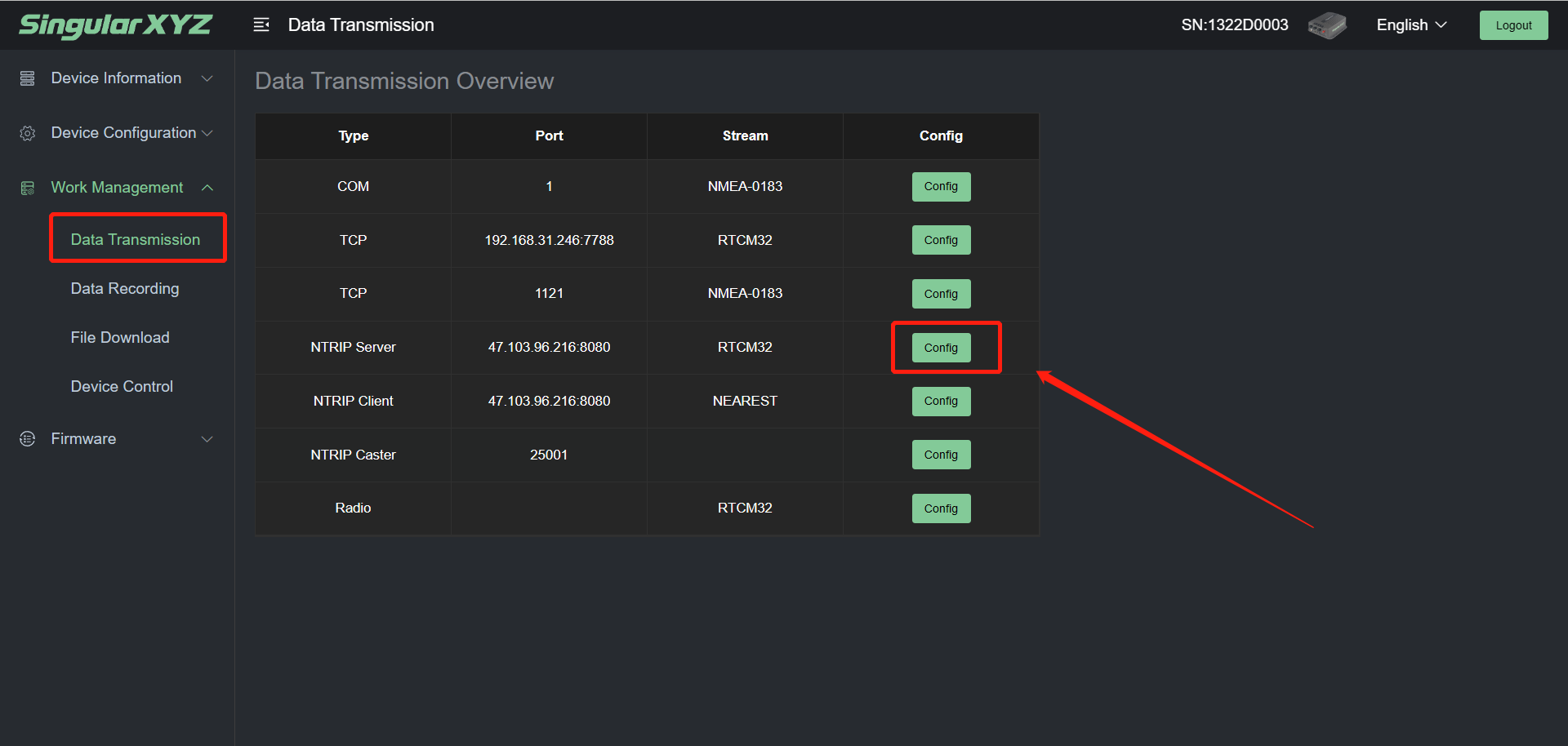
Step 2: Enter all the parameters same as SNIP settings, including the Caster Address (public IP), Port, User, Password and Mount Point. Then select the data type you need and tick Startup. Finally click OK to save all the settings.
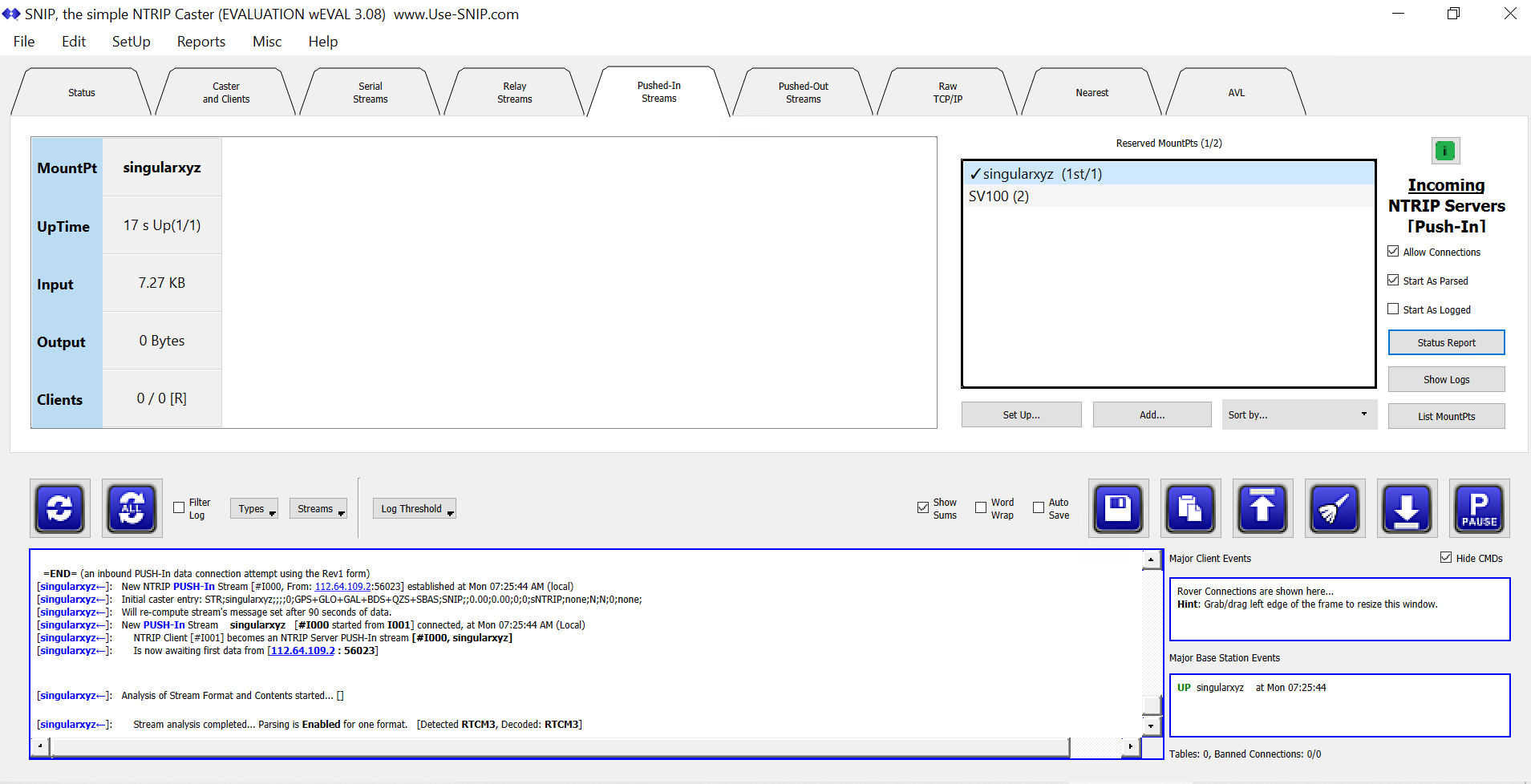
Step 3: Finally you will find the mountpoint singularxyz is online.
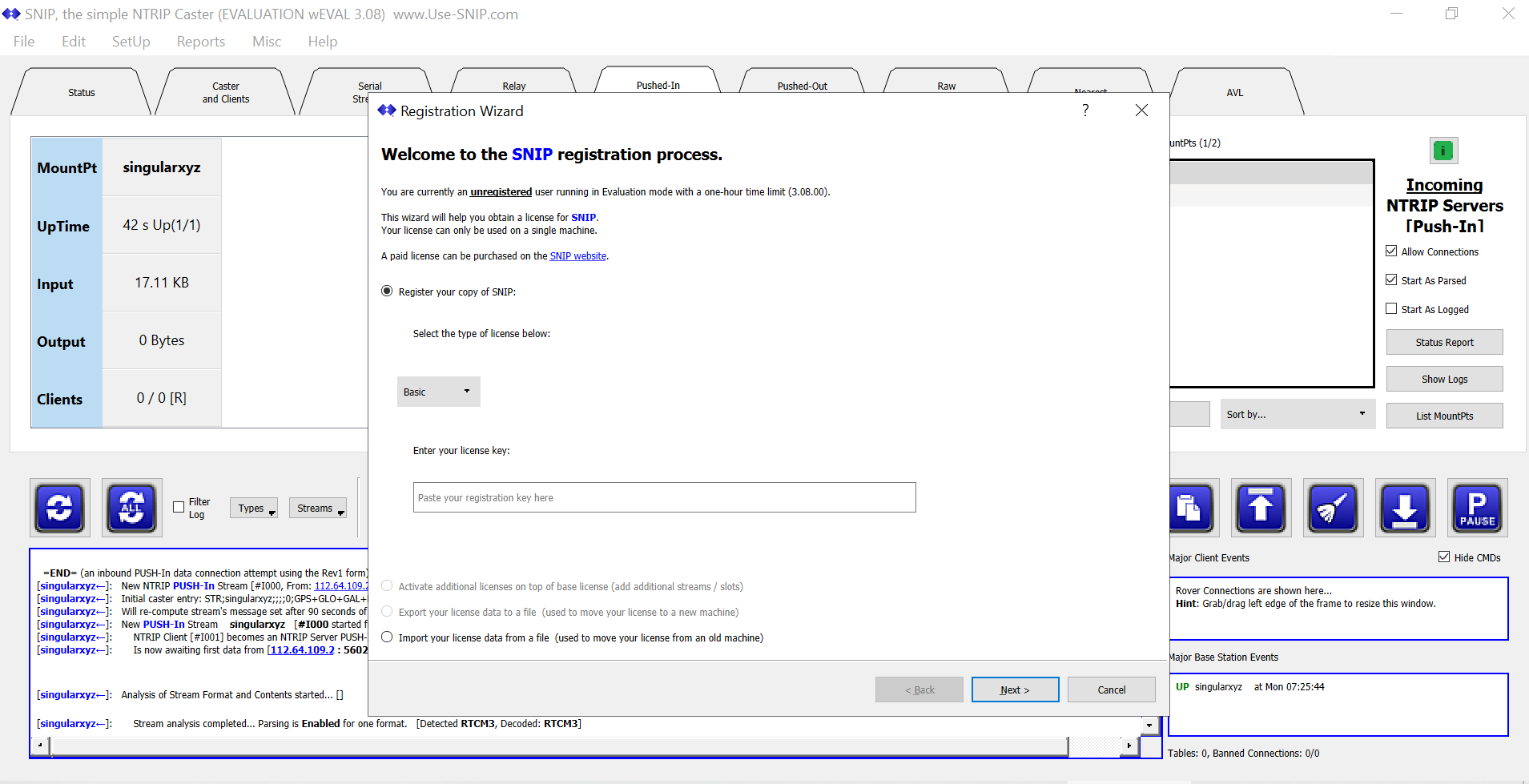
Note: If you have not registered with SNIP, it is only online for 1 hour, and you can experience all functions within an hour and manage 5 CORS stations at the same time. After an hour you can restart SNIP to get back online. If you register SNIP for free, you can permanently use the basic functions and keep 3 CORS stations online for a long time.
More about the SV100 CORS solution,
SV100 GNSS Receiver