
Tech Chat | How to build your CORS platform for free? – Chapter 1
For beginners who want to build their own CORS network, the first thing they need to consider is how to build a CORS platform in order to manage all your stations and different usage rights for users. However, to purchase CORS software and get public IP or domain may be confusing for fresh beginners.
In today's blog, we will introduce you to a free trail of building your CORS platform with Amazon Cloud and SNIP. After the actual operation, I believe it will be of great reference significance for you to build a long-term platform in the future.
This chapter will show you how to get a static IP with Amazon Cloud. And in the next blog we will introduce you how to create a port for data transmission, and how to use SV100 to send data to SNIP.
It should be reminded here that if we experience the Amazon Cloud server account for free for the first time, Amazon Cloud supports a single cloud server for 750 hours free, and the excess part needs to be paid, so we can terminate the instance if we do not use it.
Part 1: Sign in Amazon
Go to the Amazon website (https://aws.amazon.com/?nc1=h_ls) and first sign up for an account. Because it involves personal information, so we do not introduce how to register an Amazon account. If you already have an account, you can log in directly.
Step 1: Click the upper right corner to log in

Step 2: Enter the user name and password

Step 3: After login, search for the EC2 module in the search bar.

Part 2: Launch a new instance
Step 1: Click on the upper right corner to create the instance

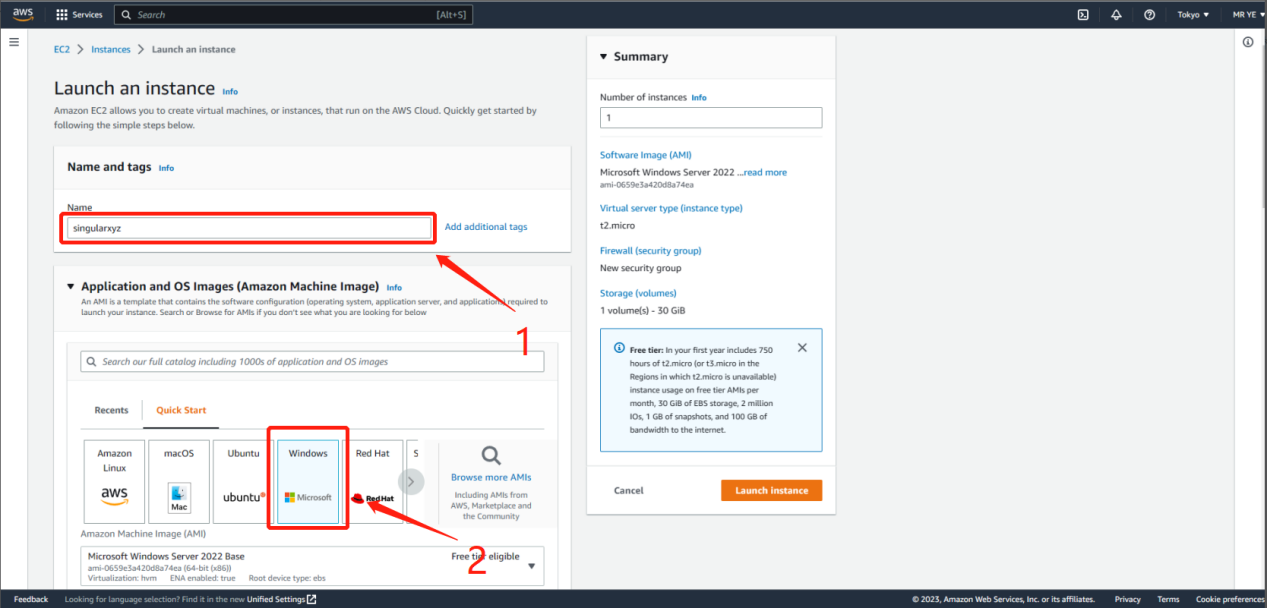
Step 2: Enter a name and select Windows as the Quick Start type.
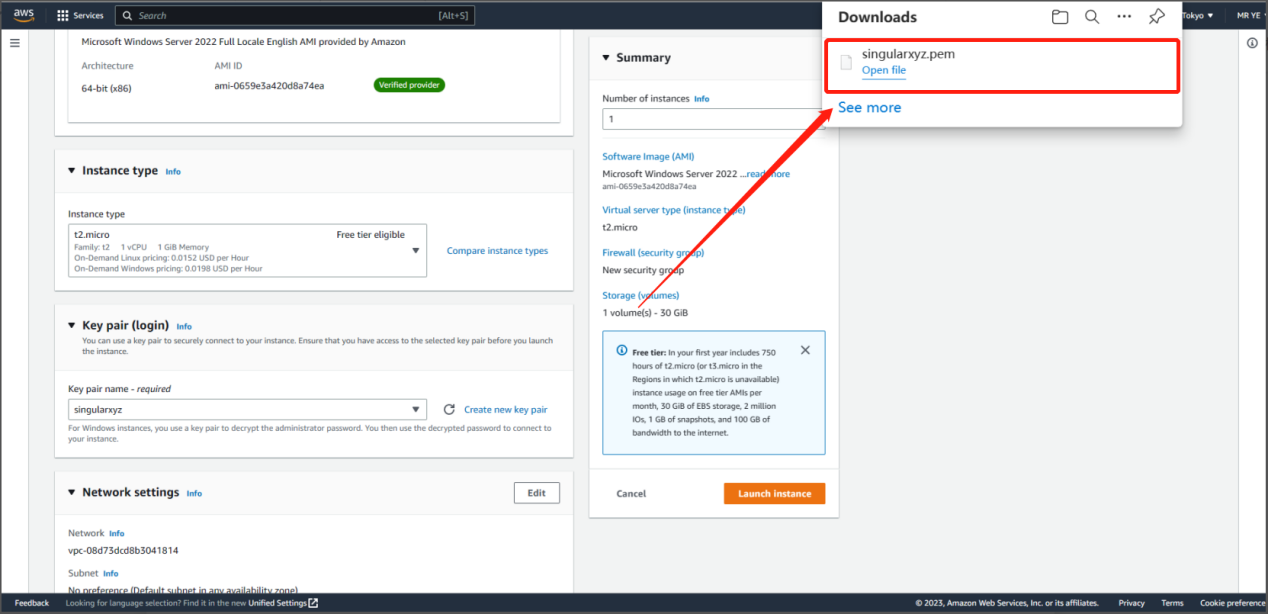
Step 3: Select the instance type and select Create new key pair

Step 4: Then you need to enter the name of the new key, choose the type and finally create.

Attention: After the creation is complete, a file of the key pair will be generated. Please remember its storage location and this file will be used later.
Step 5: Next, create the security group

Step 6: Finally, launch this instance


Step 7: Select the connect to your instance after the launch succeeds.

Part 3: Gets the password for the remote connection
Step 1: Select RDP client and click Get Password

Step 2: Here you need to enter your private key.

Step 3: Open the saved key file in TXT format and copy the document content into it. Then select Get Password.

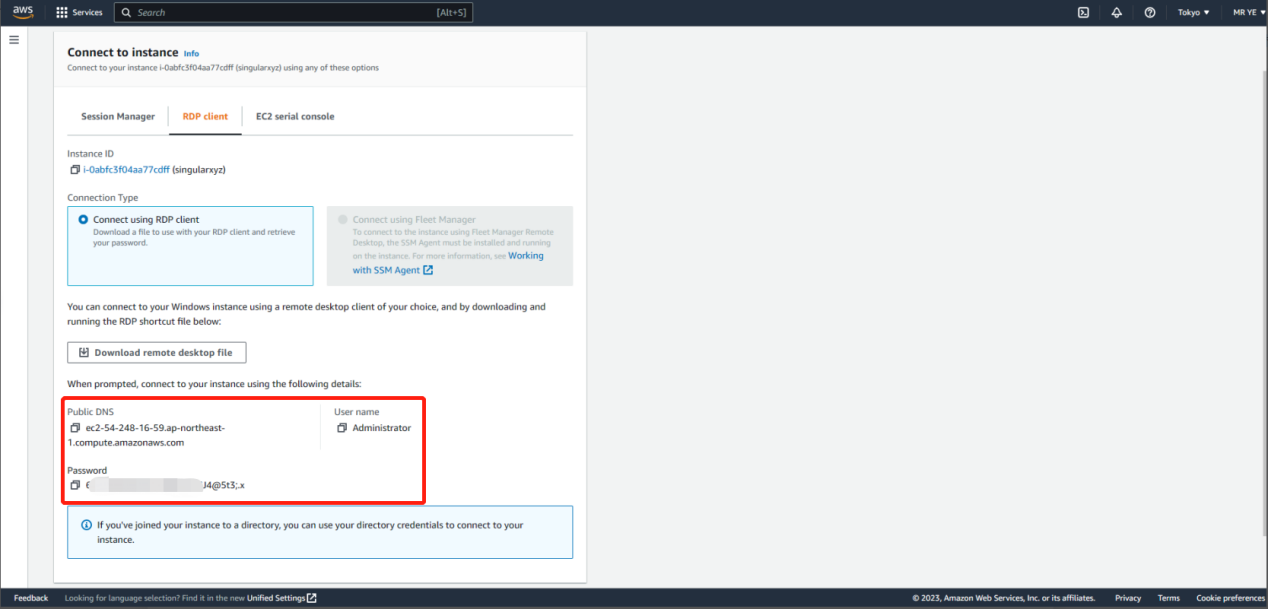
Finally, you will have the user name and password for the RDP remote connection.
Part 4: Connection
Step 1: Searching for MST in the search bar on your computer will bring up options for remote desktop features. Enable this function and enter the public IP address, user name and password to access the remote desktop.


Step 2: The first login takes a little longer to load, and after a few minutes, you have a remote computer with a public IP address. It's running all the time. (750 hours for free for the first time)

You can then install SNIP on the remote machine and get the base station data from the SV100. How to get SV100 to properly transfer data to SNIP will be covered in the next chapter.
Learn more about our SV100 CORS solution
SV100 GNSS Receiver