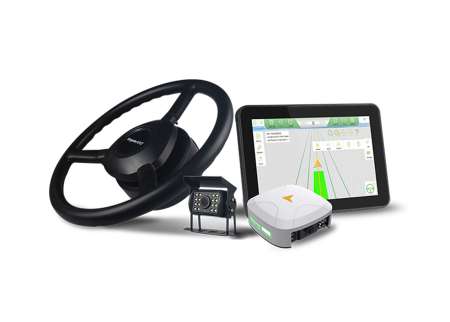
Tech Chat | SAgro‑Series Autosteer Kit Tips (Part 1): Vehicle Model Setup Explained
Recently, we've received several questions from users about how to correctly select the vehicle model in the SAgro autosteer system.
Choosing the right vehicle model is essential because different models correspond to different adjustment parameters and algorithms, which directly affect autosteer accuracy and performance.
In this blog, we'll walk you through how to select and configure the proper vehicle model in the autosteer software.
Preparation
Before starting, make sure you have the following ready:
All autosteer components installed and cables properly connected
The system tablet with autosteer software installed
Step-by-Step Guide
1. Open the Autosteer Software
Launch the autosteer software on your tablet.
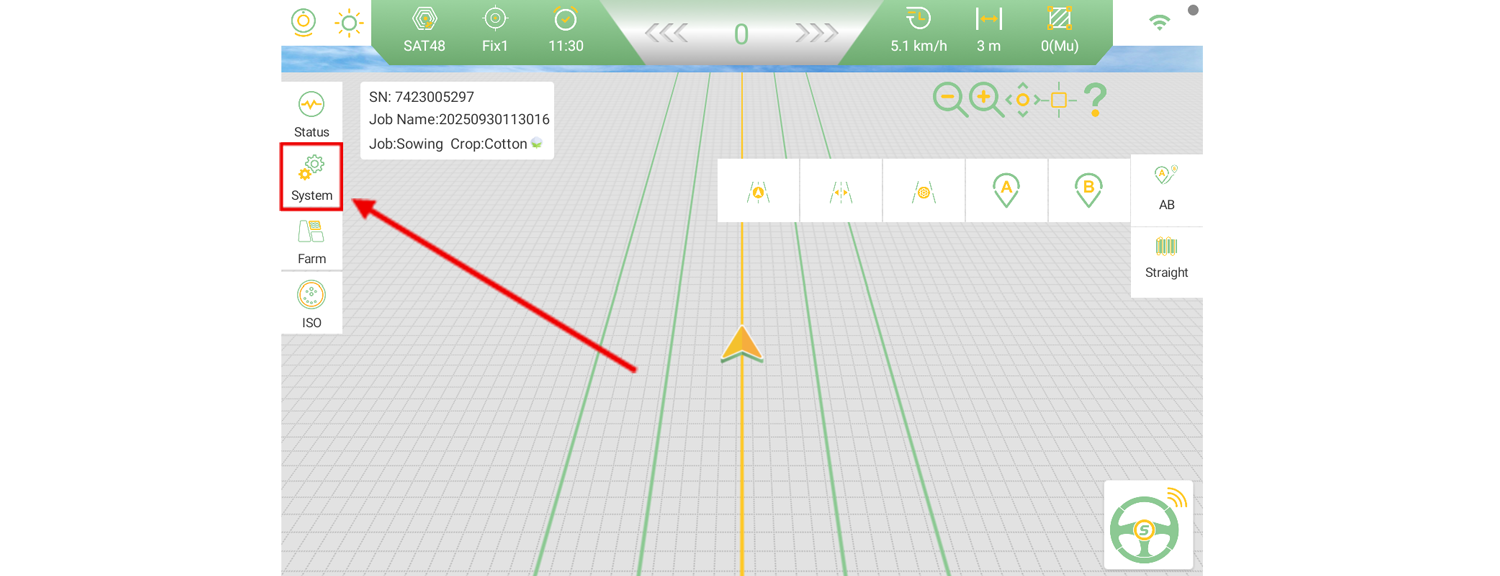
On the left side of the main interface, tap System.
2. Access Vehicle Settings
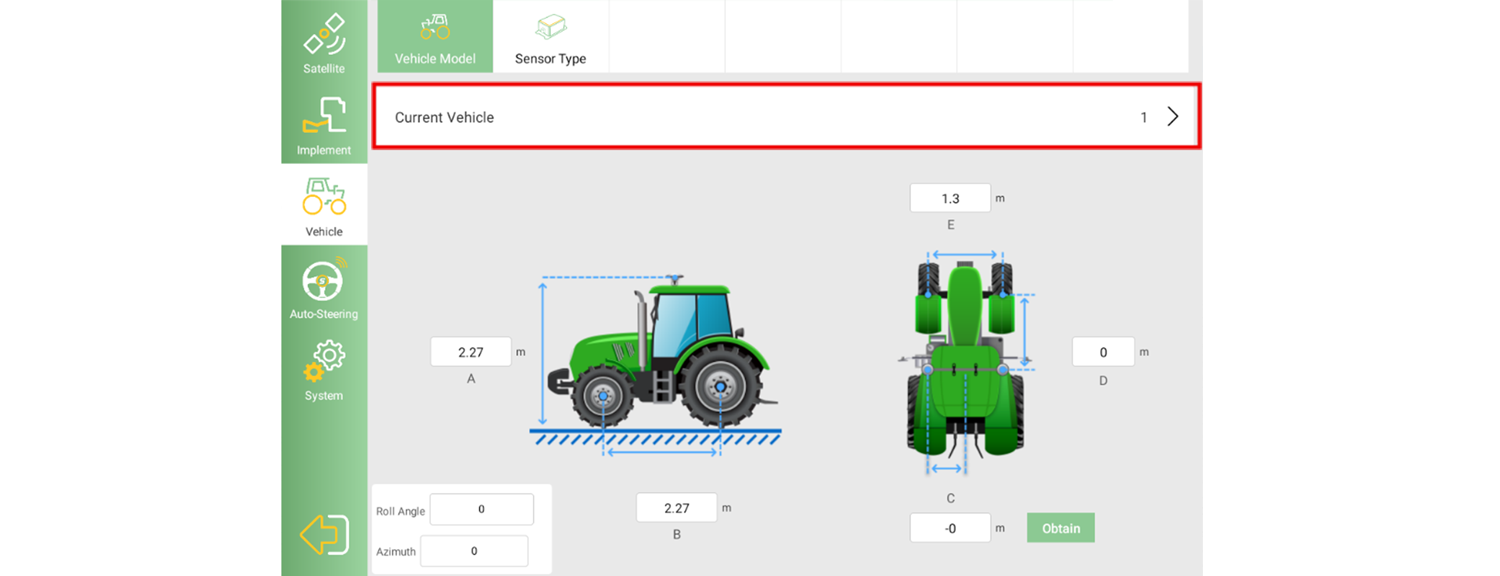
Click the third option on the left panel, Vehicle.
By default, the software uses a four-wheel tractor as the current vehicle model.
To change it, tap Current Vehicle.
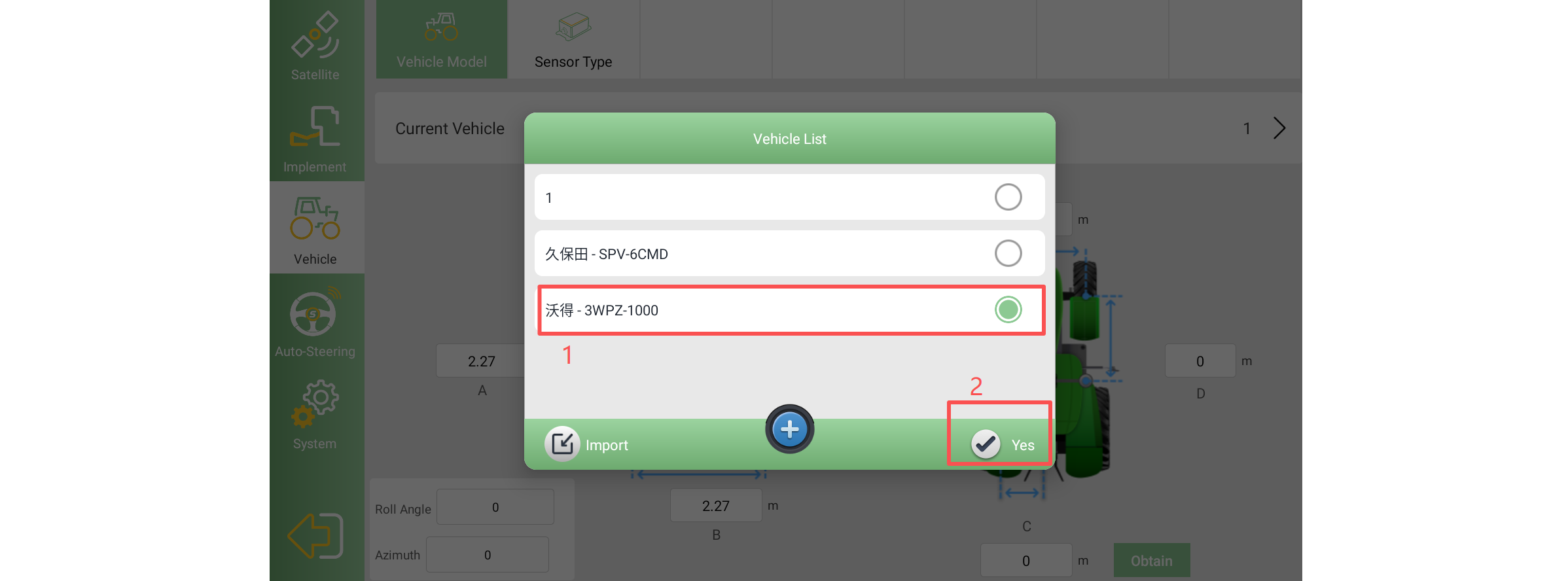
3. Switch or Import a Vehicle Model
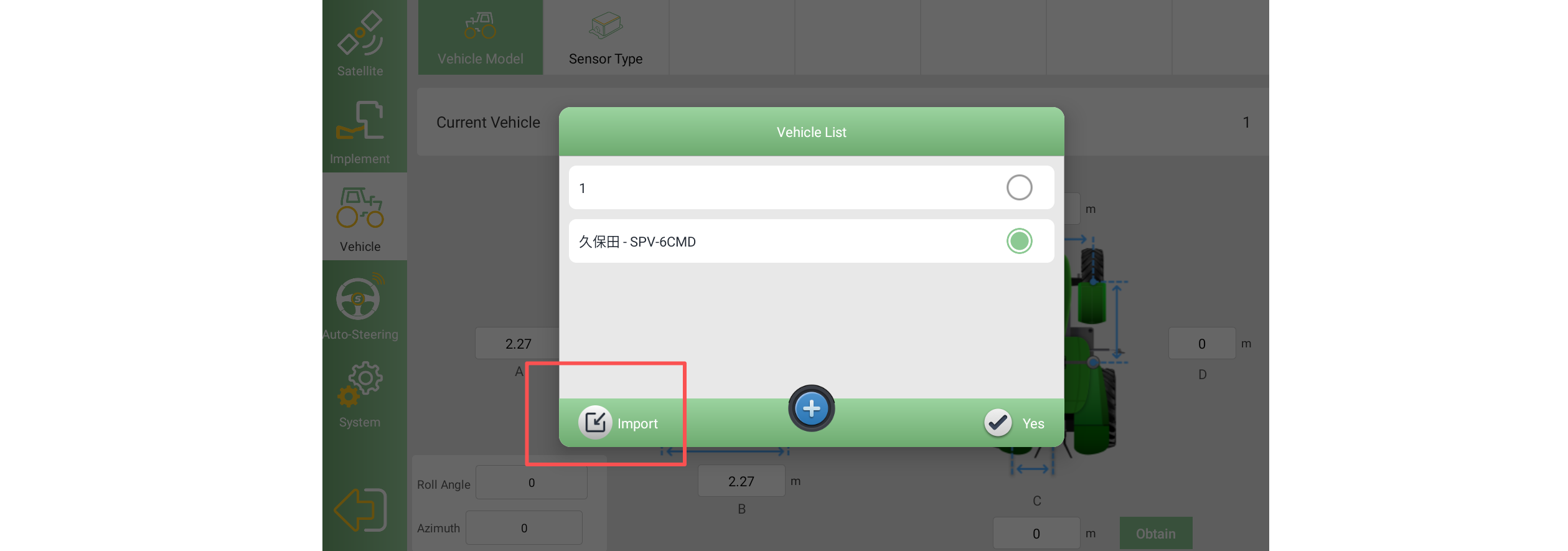
You'll now see a list of vehicle models that have already been imported.
To switch models, tap the target model and select Yes.
To add a new model, tap Import.
4. Select the Correct Vehicle Type, Brand, and Model
In the import interface:
The first column lets you choose the vehicle type (currently supported: wheeled tractors, sprayers, rice transplanters, harvesters, and crawler tractors).
The second column lets you select the brand.
The third column lets you select the specific model.
Once selected, click Import to add it to your list.
(In this example, we use the "510 Spray" model as a demonstration.)

Tip:
The brand selection corresponds to a set of pre-collected vehicle parameters. If your brand is not listed, it will not affect the steering algorithm — just ensure that the vehicle type is correctly selected.
5. Apply the Vehicle Model
Select the vehicle model you just imported and tap Yes.
The software will automatically restart to apply the new settings.
6. Verify the Vehicle Model
After restarting, navigate to the Vehicle interface again.
You'll see that the model has changed from the default wheeled tractor to sprayer (or whichever model you selected).

Note:
After changing the vehicle model, make sure to re-enter basic configuration data, such as vehicle width, antenna height, and other parameters.
By following these steps, you can easily select and configure the correct vehicle model in the SAgro-Series autosteer system.
This ensures that your machine operates with the most suitable steering parameters for accurate and efficient field performance.
For more details on importing vehicle models and advanced parameter adjustments, stay tuned for Part 2 of our SAgro-Series Autosteer FAQ.
If you need further assistance, feel free to contact our support team at support@singularxyz.com.
Keywords
Related products